
Best Devices for IPTV in the UK: Firestick, Smart TV & More (2026)
Does the Device Actually Matter?
Yes, more than most people expect. The same IPTV subscription can feel instant on one device and sluggish on another. The app, the processor speed and the WiFi chip all shape your experience. Here is how the main options compare for UK viewers.
The Main Options
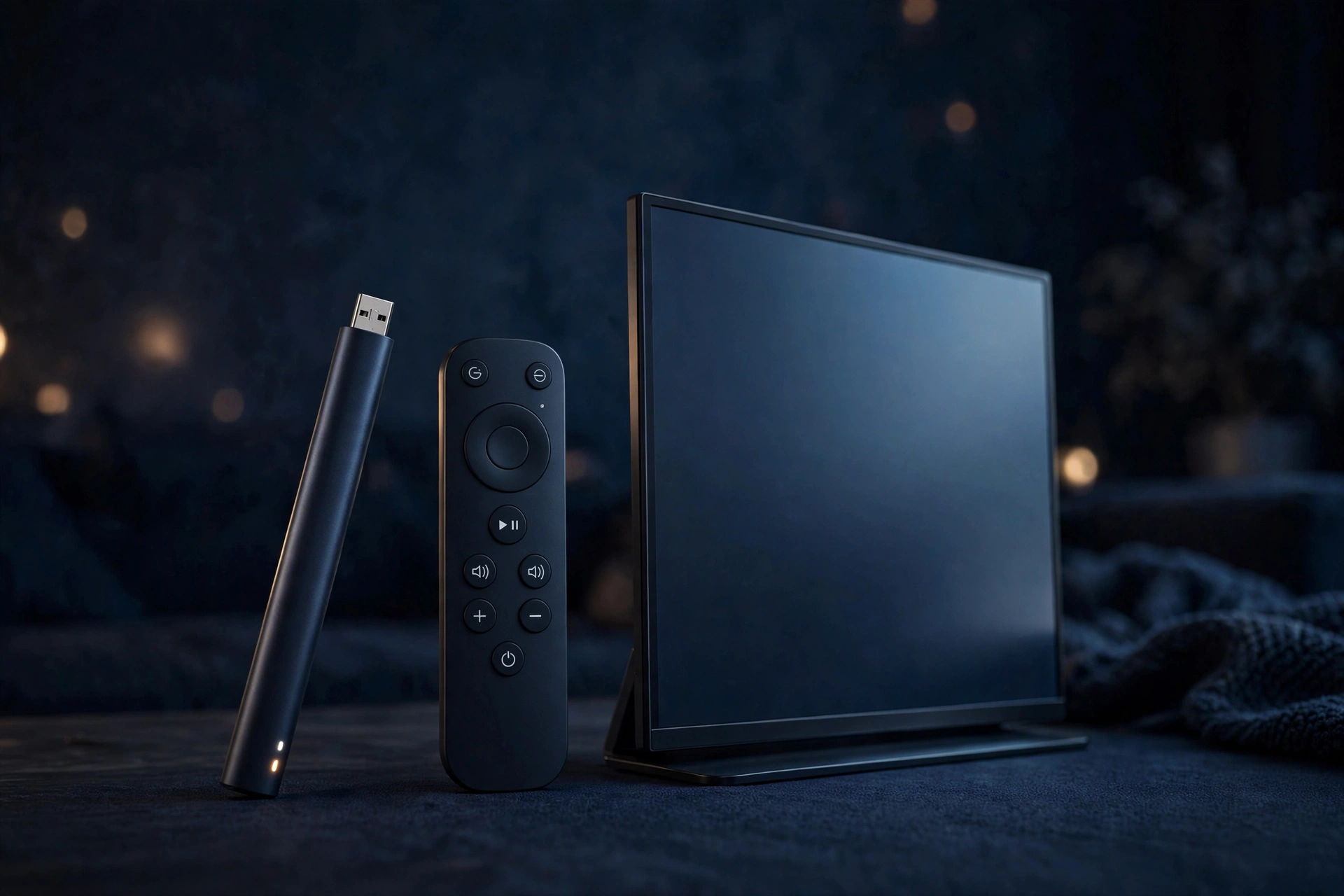
Amazon Firestick (4K / 4K Max). The UK’s most popular IPTV device for good reason: cheap, fast enough, and every major IPTV player app is available. The 4K Max is noticeably snappier than the basic model and worth the small premium. Plugs into any TV’s HDMI port.
Smart TV (Samsung / LG). No extra box needed, one remote for everything. App choice depends on your TV’s store, and older TVs can feel slow. Best for secondary rooms or minimalists.
Android TV box (e.g. Nvidia Shield). The enthusiast choice: fastest processors, best upscaling, ethernet built in. Overkill for most, perfect if you want the absolute smoothest experience.
MAG box. The traditional IPTV set-top box. Simple, remote-driven, very reliable for live TV, but clunky for on-demand browsing compared with modern apps.
Phone / tablet. Great for TV around the house, commutes and holidays. Not a main-TV replacement, but every subscription should work here too.
PC / Mac. Works fine through apps or web players. Ideal for desks, less so for sofas.
Comparison Table
| Device | Approx. price | Speed | Ease of setup | Best for |
|---|---|---|---|---|
| Firestick 4K Max | £40–£70 | Fast | Very easy | Most people, main TV |
| Smart TV app | £0 (built in) | Varies | Easy | Secondary rooms |
| Nvidia Shield | ~£180 | Fastest | Easy | Enthusiasts, 4K purists |
| MAG box | £70–£100 | Steady | Moderate | Live-TV traditionalists |
| Phone / tablet | £0 (owned) | Fast | Very easy | Portable viewing |
Our Recommendations
Just tell me what to buy: a Firestick 4K Max. It is the best balance of price, speed and app choice for the vast majority of UK households.
For the main living-room TV: Firestick 4K Max or Nvidia Shield if you want the best possible picture.
For bedrooms and kitchens: the Smart TV’s built-in app, or a basic Firestick. No need to overspend.
For technophobes: a MAG box or Firestick with a simple player app. Fewer menus, bigger text, less to go wrong.
Setting Up Your First Device in 10 Minutes
Whichever device you choose, the process is nearly identical: 1. Install an IPTV player app from your device’s app store. 2. Open it and choose the Xtream Codes login option. 3. Enter the server URL, username and password from your activation email. 4. Wait a couple of minutes while channels and the guide load. 5. Star your favourite channels. Done. Our full setup guide walks through each device with screenshots described step by step.
What to Avoid
Unknown-brand boxes from marketplaces. No updates, no support, often counterfeit chips. Stick to known brands.
First-generation streaming sticks. Too slow for modern apps; you will blame the IPTV service for the stick’s shortcomings.
TVs with no app store. Some budget smart TVs lock you out of installing IPTV players. A Firestick bypasses the problem for less than the price of a takeaway.
More Questions Answered
Can I move my Firestick between TVs?
Yes. Unplug it, plug it into the other TV, and everything, apps, logins, favourites, moves with it.
Do I need a separate device per TV?
Only if you want to watch different things simultaneously. Each TV needs its own stick or app, all signed into the same subscription within your connection limit.
Firestick Models Compared
| Model | Approx. price | 4K | WiFi | Verdict |
|---|---|---|---|---|
| Fire TV Stick HD | ~£35 | No | WiFi 5 | Fine for HD-only TVs |
| Fire TV Stick 4K | ~£55 | Yes | WiFi 6 | Great value all-rounder |
| Fire TV Stick 4K Max | ~£65 | Yes | WiFi 6E | Our pick: fastest, smoothest |
| Fire TV Cube | ~£130 | Yes | WiFi 6E + ethernet | Overkill unless you want hands-free |
Best IPTV Apps Compared
The app matters as much as the device. The main players:
TiviMate. The enthusiast favourite: fast, beautiful TV guide, powerful favourites and recording. Premium version unlocks the best features for a small one-time fee.
IPTV Smarters-style apps. The beginner-friendly option: simple login with Xtream Codes, clean layout, VOD and catch-up built in. What most providers recommend first.
Perfect Player / OTT Navigator. Lightweight alternatives that run well on older hardware.
VLC. Free and universal, but clunky for daily TV use. Fine as a backup, not as a main app.
Try two apps during your trial week and keep the one whose guide and navigation feel natural. The subscription works identically in all of them.
Smart TV Platforms Compared
Fire OS (Amazon TVs and Sticks): best app selection for IPTV, easiest sideloading.
Android TV / Google TV: excellent app choice, good performance on recent models.
Samsung Tizen: decent built-in apps, but the store is more restricted.
LG webOS: similar to Samsung; fine for mainstream players, fewer enthusiast options.
Rule of thumb: if your TV runs Fire OS or Android TV, use the built-in apps. If it runs Tizen or webOS and your preferred app is missing, a Firestick fixes it for £40.
Picture and Audio Settings Worth Changing
Three settings transform most setups: 1. Match frame rate in your player or stick settings, so 50Hz UK broadcasts play smoothly instead of juddering. 2. Audio passthrough if you have a soundbar, letting it decode surround properly. 3. Your TV’s motion smoothing OFF for films and sport (the soap-opera effect), unless you genuinely like it.
Making It Family-Friendly
Set up profiles or favourites per person so everyone has their channels one click away. Enable parental PIN locks on adult categories on day one. Put the IPTV app first on the home screen so the family finds it without hunting. And write the WiFi password on the router, future you says thanks.
Budget Setups That Work
Under £50: Fire TV Stick HD on the TV you own. Perfectly good for HD viewing.
Under £100: Fire TV Stick 4K Max plus an ethernet adapter. The sweet spot for most homes.
Under £200: Nvidia Shield for the main TV, basic sticks elsewhere. The enthusiast setup.
Even More Questions
How long do streaming sticks last?
Three to five years typically. When apps start feeling sluggish despite good WiFi, the hardware is telling you it is time.
Can I use a games console?
Consoles have limited IPTV app options compared with sticks and smart TVs. A £40 Firestick outperforms them for TV duty.
Is the Cube worth double the 4K Max?
For IPTV alone, no. The 4K Max does everything that matters for television.
Firestick Models Compared
| Model | Approx. price | 4K | WiFi | Verdict |
|---|---|---|---|---|
| Fire TV Stick HD | ~£35 | No | WiFi 5 | Fine for HD-only TVs |
| Fire TV Stick 4K | ~£55 | Yes | WiFi 6 | Great value all-rounder |
| Fire TV Stick 4K Max | ~£65 | Yes | WiFi 6E | Our pick: fastest, smoothest |
| Fire TV Cube | ~£130 | Yes | WiFi 6E + ethernet | Overkill unless you want hands-free |
Best IPTV Apps Compared
The app matters as much as the device. The main players:
TiviMate. The enthusiast favourite: fast, beautiful TV guide, powerful favourites and recording. Premium version unlocks the best features for a small one-time fee.
IPTV Smarters-style apps. The beginner-friendly option: simple login with Xtream Codes, clean layout, VOD and catch-up built in. What most providers recommend first.
Perfect Player / OTT Navigator. Lightweight alternatives that run well on older hardware.
VLC. Free and universal, but clunky for daily TV use. Fine as a backup, not as a main app.
Try two apps during your trial week and keep the one whose guide and navigation feel natural. The subscription works identically in all of them.
Smart TV Platforms Compared
Fire OS (Amazon TVs and Sticks): best app selection for IPTV, easiest sideloading.
Android TV / Google TV: excellent app choice, good performance on recent models.
Samsung Tizen: decent built-in apps, but the store is more restricted.
LG webOS: similar to Samsung; fine for mainstream players, fewer enthusiast options.
Rule of thumb: if your TV runs Fire OS or Android TV, use the built-in apps. If it runs Tizen or webOS and your preferred app is missing, a Firestick fixes it for £40.
Picture and Audio Settings Worth Changing
Three settings transform most setups: 1. Match frame rate in your player or stick settings, so 50Hz UK broadcasts play smoothly instead of juddering. 2. Audio passthrough if you have a soundbar, letting it decode surround properly. 3. Your TV’s motion smoothing OFF for films and sport (the soap-opera effect), unless you genuinely like it.
Making It Family-Friendly
Set up profiles or favourites per person so everyone has their channels one click away. Enable parental PIN locks on adult categories on day one. Put the IPTV app first on the home screen so the family finds it without hunting. And write the WiFi password on the router, future you says thanks.
Budget Setups That Work
Under £50: Fire TV Stick HD on the TV you own. Perfectly good for HD viewing.
Under £100: Fire TV Stick 4K Max plus an ethernet adapter. The sweet spot for most homes.
Under £200: Nvidia Shield for the main TV, basic sticks elsewhere. The enthusiast setup.
Even More Questions
How long do streaming sticks last?
Three to five years typically. When apps start feeling sluggish despite good WiFi, the hardware is telling you it is time.
Can I use a games console?
Consoles have limited IPTV app options compared with sticks and smart TVs. A £40 Firestick outperforms them for TV duty.
Is the Cube worth double the 4K Max?
For IPTV alone, no. The 4K Max does everything that matters for television.
A Closer Look at the Top Apps
TiviMate deep dive: its TV guide is the closest thing to a Sky-style EPG in the app world, with 7-day listings, favourites groups and catch-up integration. The premium unlock (a few pounds, one-time) adds multiple playlists and recording. Best on Firestick and Android TV.
IPTV Smarters deep dive: built around the Xtream Codes login most providers use, so setup is entering three fields and waiting. Includes VOD, series tracking and parental controls. The default recommendation for beginners.
Choosing between them: pick TiviMate if you love a proper TV guide and tinker with settings; pick Smarters-style apps if you want the simplest path from login to watching.
Storage, Recording and Timeshift
Want to record? You need storage and an app that supports it. Firesticks accept USB drives via an OTG adapter; Android boxes often have USB ports built in; Nvidia Shield supports adopted storage. Set recordings from the guide like a traditional PVR. Note that recording uses one of your connections while it runs, and copyright rules for recording vary, so keep it to personal use.
Accessibility Features Worth Knowing
Modern setups serve everyone: subtitles/closed captions on most VOD and many live channels, audio description tracks where broadcast, voice control on Firestick and Google TV (“play BBC One”), large text options in most player apps, and high-contrast modes at the OS level. If someone in the house struggles with small menus, these settings change everything.
Kids’ Rooms: Locking It Down Properly
Three layers: 1. PIN-lock adult categories in the IPTV app. 2. Use the device’s own parental controls (Fire OS and Android TV both have kid profiles). 3. Put the kids’ favourites on the home screen so they never need to browse the full list. Ten minutes of setup buys total peace of mind.
When to Replace: The Upgrade Checklist
Replace your streaming device when: apps take 10+ seconds to open, the interface stutters scrolling the guide, new app versions no longer support it, or it runs hot and crashes. Do not replace when: only one app misbehaves (reinstall it), or WiFi is the actual problem (fix the network first).
Final Questions
Can I use two different apps on one subscription?
Yes. TiviMate in the living room, a simple app in the bedroom, same login, within your connection limit.
Do expensive HDMI cables matter?
No. A basic certified high-speed cable performs identically to a £50 one for streaming.
Should the stick stay plugged in?
Yes, they are designed for it. Sleep mode uses negligible power and keeps everything instant.
Complete Walkthrough: Setting Up TiviMate
1. Install TiviMate from your device’s app store and open it. 2. Choose Add Playlist, then Xtream Codes login. 3. Enter any playlist name, then the server URL, username and password from your activation email, exactly as written. 4. Wait while channels, the guide and VOD load (one to three minutes first time). 5. Open Settings > EPG and set the update interval to daily and the timezone to London. 6. Long-press any channel to add it to favourites; build groups for Sport, News, Kids and Films. 7. In Settings > Playback, enable auto frame rate matching for judder-free UK broadcasts. That is the full setup; everything else is preference.
Voice Assistants and Smart Home Control
Modern sticks integrate with Alexa and Google Assistant: “play BBC One”, “open the guide”, “pause”. HDMI-CEC lets one remote control TV power, volume and the stick together, so the coffee table stops looking like a remote control shop. Set up CEC in your TV settings once and the family gets a single-remote experience rivalling any premium box.
Taking Your Setup Travelling
The Firestick’s superpower is portability: unplug it from home, plug it into the hotel TV, connect to WiFi through the stick’s captive-portal-friendly browser, and your entire setup, apps, favourites, logins, is there. Add a short HDMI extender (often in the box) for tight wall-mounted hotel TVs. Your subscription works anywhere with decent broadband, so home truly travels with you.
Last Questions
Which is better: TiviMate or Smarters?
TiviMate for guide lovers and tinkerers; Smarters-style apps for simplicity. Both work with the same subscription.
Can I back up my settings?
TiviMate premium and most good apps offer backup/restore, so a replacement device is configured in minutes.
Do I need the premium versions?
Try free first. Premium unlocks are cheap one-time fees and worth it if you love the app, but the free tiers cover the essentials.
Frequently Asked Questions
Can I use the same subscription on two different devices?
Yes. Logins are not locked to one device, and most plans include 2 simultaneous connections.
Do I need a VPN on my Firestick?
Not for the service to work. Some users add one for privacy on public or shared networks.
Will it work on my old non-smart TV?
Yes, that is exactly what a Firestick is for: it makes any TV with an HDMI port smart.
How long does setup take per device?
About ten minutes each. Our step-by-step setup guide covers Firestick, Smart TV, mobile and MAG boxes.




3 Comments