IPTV Connections Explained: How Many Devices?
If you have been comparing IPTV subscriptions in the UK, you will have noticed the word “connections” on every pricing page. It sits next to the price, it changes the price, and hardly anyone explains what it actually means. The confusion is understandable, because IPTV connections work differently from the way Netflix or Sky handles multiple screens. This guide explains exactly what an IPTV connection is, how many devices you can use, what happens when you go over your limit, and how to choose the right number of connections for your household, without paying for streams you will never use.
What Is an IPTV Connection, Exactly?
An IPTV connection is a single active stream between your account and your provider’s servers. Think of it as one seat at a table. When you press play on a channel, your device opens one connection and occupies one seat for as long as the stream runs. Stop the stream, and the seat is freed for another device.
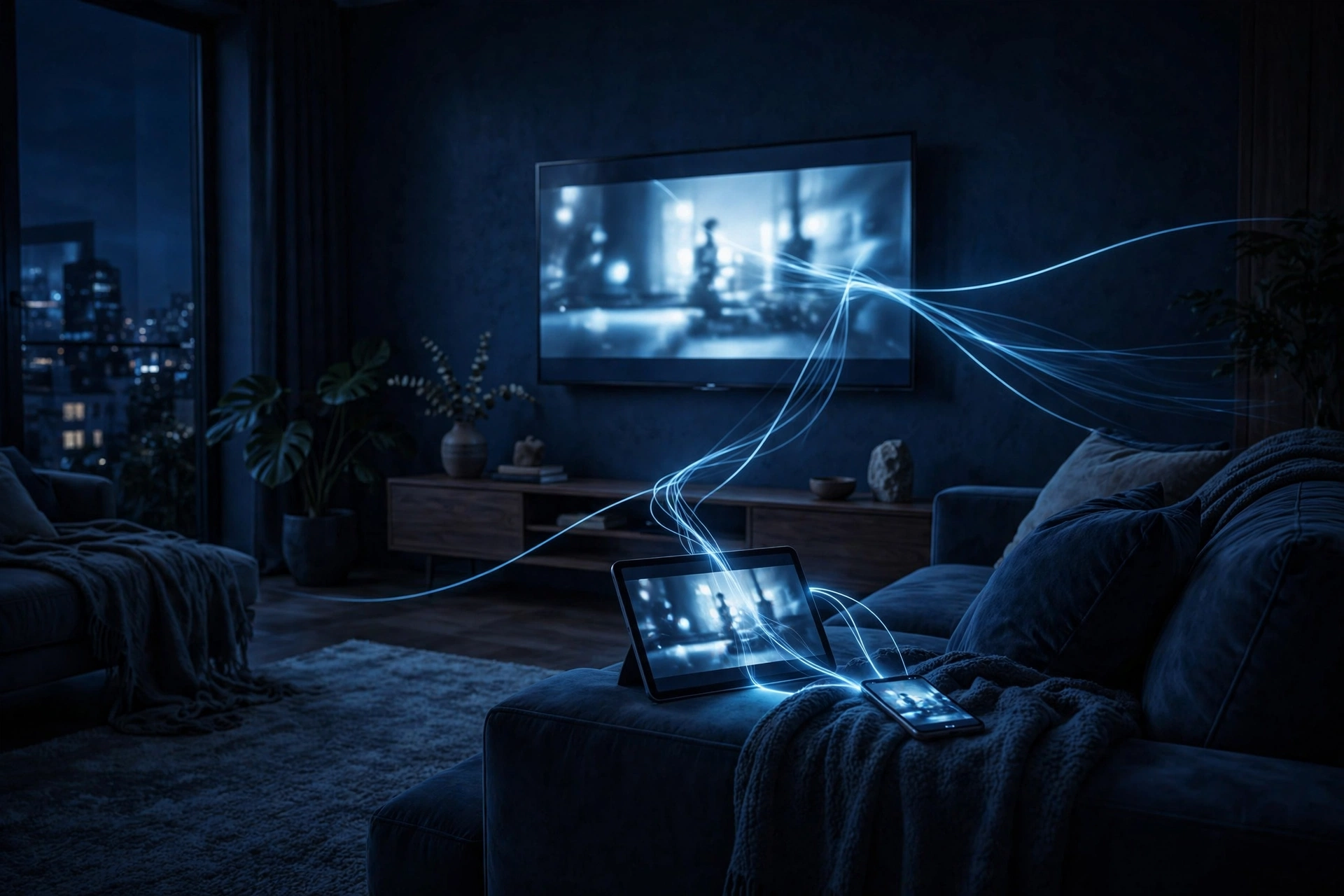
This is the crucial point: a connection is not a device. It is a simultaneous stream. A plan with one connection lets you watch on one screen at a time. A plan with two connections lets two screens watch at the same time, even if they are playing completely different channels. The streams are independent, so the living room TV can show live football while a tablet in the bedroom plays a film.
Most providers, including XtreamHD, sell plans built around a set number of connections. The base plan usually includes one or two connections, and you can add more for a smaller extra charge per stream. The connection count is the single most important number on the pricing page, because it decides how many people in your home can watch at once. Everything else, the channel count, the VOD library, the 4K quality, is identical across connection tiers.
Devices vs Connections: Why They Are Not the Same Thing
Here is the distinction that trips up almost every new subscriber. You can install your IPTV app and log in on as many devices as you like: your Firestick, your phone, your tablet, your laptop, your bedroom TV. Providers do not normally limit the number of devices with the app installed. What they limit is how many of those devices can stream at the same time.
So with a one-connection plan, you could have the app on five devices, but only one of them can play at any given moment. Start a second stream and the first one stops, or the new one refuses to load. This catches people out at the worst moments, typically when someone starts watching in the bedroom and kills the football in the living room.
The practical advice is simple. Install the app everywhere you might want it, because there is no penalty for that. Then buy the number of connections that matches the number of screens your household uses at the same time, not the number of devices you own. A family of four with three TVs but only two ever on at once needs two connections, not three.
How Many Devices Can You Install IPTV On?
There is no hard technical ceiling on installations for most providers. The same login works on a Firestick, an Android TV, a phone, a tablet, and a PC. Some providers do ask that all devices stay within one household, because logins appearing from several different IP addresses at once can look like account sharing, which most providers forbid. Used sensibly within one home, though, installing on many devices is expected and normal.
One sensible habit is to build favourites lists separately on each device. The kids’ tablet and the living room TV rarely want the same channels, and a tidy favourites list makes a big channel lineup far easier to browse. If you want help picking hardware, our guide to the best device for IPTV in the UK covers the options in detail.
What Happens If You Exceed Your Connection Limit?
Exceeding your limit is never a free upgrade. What happens next depends on the provider’s server software, but the outcomes fall into a few familiar patterns. The most common is that the newest stream simply kicks the oldest one off. You start a film on your phone, and the TV in the living room goes black. No warning, no error message, just a frozen picture and a confused household.
Some servers behave differently. They may refuse the second stream outright, showing a login error or a “maximum connections” message on the new device while the first keeps playing. A few providers treat repeated overuse as abuse: the account can be temporarily suspended, or the line blocked, because the server reads it as credential sharing. That is especially likely when the extra streams come from different IP addresses, which looks exactly like a login being passed around.
The honest fix is not to game the system but to size the plan correctly. Extra connections are consistently cheaper than buying a second subscription, and far cheaper than the disruption of streams cutting out during a live match. If you keep hitting the limit, that is the server telling you plainly that you need one more connection.
Who Actually Needs a Multi-Connection Plan?
Not everyone does. Plenty of single viewers and couples never watch two screens at once, and for them a one-connection plan is perfect. But certain households genuinely need more. The table below covers the common cases.
| Household type | Connections worth buying | Why |
|---|---|---|
| Single viewer, one TV | 1 | Only one screen is ever on. Extra connections would sit idle. |
| Couple with different tastes | 2 | One watches sport, the other watches drama. Two streams run at once most evenings. |
| Family with kids | 2 to 3 | Parents on the main TV, kids on a tablet or bedroom TV. Three covers school holidays. |
| Shared house or housemates | 3 to 4 | Everyone watches independently. Splitting one multi-connection plan beats separate subscriptions. |
| Sports-heavy household | 2 to 3 | Two matches at once, or the main game plus a second screen for scores and build-up. |
Notice the pattern: count simultaneous viewers, not total people. A household of five where everyone gathers around one TV for the evening needs a single connection. A household of two where both watch different things on different devices every night needs two.
How to Choose the Right Number of IPTV Connections
Start by watching your own habits for a week. Note the evenings when two screens are on at once. If it happens most nights, two connections is your baseline. If it happens only when the kids have friends over, you might manage with one and accept the occasional clash, though most people find the small extra cost worth the peace.
Next, think about peak events. Big football nights, boxing cards, and season finales are when households collide. If your current setup already causes arguments during the Premier League run-in, that is your answer. It is also worth considering catch-up and recording habits: a scheduled recording can occupy a connection on some setups, so a household that records while watching may need one more stream than it first appears.
Finally, check how your provider sells extras. Many providers let you add connections to an existing plan at checkout or mid-subscription, so you are not locked into a guess forever. Starting with two and adding a third later is a perfectly sensible strategy. You can see how XtreamHD structures this on the IPTV subscription page, and if you are still unsure, a free IPTV trial lets you test your real viewing pattern before committing.
Do More Connections Need Faster Internet?
Yes, and this is the detail people forget. Each connection is a separate stream pulling its own bandwidth. One HD stream wants roughly 10 to 15 Mbps of stable speed; a 4K stream wants 25 Mbps or more. Two simultaneous 4K streams can saturate a basic fibre line, and three HD streams on a slow connection will all stutter together.
The rule of thumb is to add up what your streams need and then add headroom for everything else in the house: phones, laptops, gaming, video calls. If your broadband struggles with two streams at once, the answer is rarely more connections, it is better bandwidth or a wired connection for the main TV. Our guide to internet speed for IPTV walks through the numbers in detail.
Connections and Sharing: The Rules Most People Miss
A connection is licensed for your household, not for distribution. Using your two connections on your own TV and your own tablet is exactly what they are for. Giving your login to a friend across town so they can use your second stream is account sharing, and providers actively detect it: two streams from two towns on one line is one of the easiest patterns for server software to spot.
VPNs add another wrinkle. Some viewers route all traffic through a VPN, which can make every device appear to come from the same VPN server, or make one device appear to jump between countries. Neither usually causes a ban on its own, but if your provider locks lines to a region or flags rapid IP changes, a VPN can trigger exactly the kind of connection errors you were trying to avoid. If you use a VPN, keep it consistent: same server, same country, on every device.
The technical definition of IPTV as a delivery method is worth knowing here, because it explains why providers police streams this way. Each stream is a real-time unicast session that costs the provider bandwidth, which is why connections are the unit they sell. Wikipedia’s overview of Internet Protocol television explains the underlying technology if you want the background.
How IPTV Connections Work Behind the Scenes
It helps to know, in plain terms, what the server sees when you press play. Your IPTV login is tied to a line on the provider’s server, and that line has a connection limit written into it. Every time a device starts a stream, the server checks the line: is there a free slot? If yes, the stream starts. If every slot is taken, the server either refuses the new stream or disconnects the oldest one, depending on how the provider configured it.
Each stream is a continuous, real-time transfer of video data. Unlike downloading a file, which finishes, a live stream keeps pulling data for as long as you watch. That is why connections are the natural unit for providers to sell: every open stream costs them bandwidth and server capacity in real time. Two connections means the server reserves capacity for two of your streams at once, whether those streams run for ten minutes or ten hours.
This also explains why the stream that gets cut is usually the oldest one. When a third device tries to use a two-connection line, most server software applies a simple rule: the newest request wins, and the longest-running stream is dropped to make room. There is no queue and no warning screen, because the server treats it as the account holder choosing to move their viewing to a new device. From the server’s side, that is a reasonable assumption. From your sofa, it feels like a fault, which is why understanding the mechanism saves a lot of confused support tickets.
Getting the Most From a Single-Connection Plan
If you have decided one connection is enough, a few habits will keep it feeling generous. First, always stop streams properly rather than just switching the TV off. Many apps keep the stream running in the background when you press the TV power button, which means the connection stays occupied and your phone cannot start a stream later. Back out to the app’s home screen or press stop before turning the TV off.
Second, use provider catch-up and VOD instead of leaving live channels running. A surprising number of single-connection clashes come from a live channel playing to an empty room while someone wants to watch on another device. Catch-up content does not hold a live stream slot in the same way, so it is the tidier option when the house is busy.
Third, talk to your household about peak times. It sounds trivial, but most connection conflicts are social, not technical. Agreeing that the living room TV has priority during the big match, and that phones wait until half time, prevents the classic mid-goal blackout. And if you find these workarounds wearing thin after a month, that is useful data: your household has outgrown one connection, and upgrading is the honest fix.
Frequently Asked Questions
Can I use one IPTV subscription on two TVs at the same time?
Only if your plan includes at least two connections. With one connection, starting the second TV will stop the first stream. Check your plan details or ask your provider how many simultaneous streams your line allows.
Does installing the app on more devices cost extra?
No. Installing and logging in on extra devices is normally free. You only pay for simultaneous streams, so five installed devices with one connection costs the same as one installed device with one connection.
How do I know how many connections I currently have?
Check your provider’s pricing page or your account email. XtreamHD plans state the connection count clearly. If streams keep cutting each other off, you have fewer connections than your household needs.
Can I add an extra connection later?
With most providers, yes. Extra connections can usually be added to an active subscription without starting a new plan. Contact your provider’s support and they will adjust the line.
Do recordings use up a connection?
It depends on your setup. If your app records by tuning a live channel in the background, that recording occupies a stream just like watching does. Provider-side catch-up, on the other hand, uses no connection at all.
Will a VPN affect my connections?
A VPN does not change how many connections you have, but it can cause login or stream errors if your provider flags rapid IP changes or unexpected locations. Use one consistent VPN server location on all devices.
The Bottom Line
IPTV connections are simply simultaneous streams, and the right number is the number of screens your household uses at once. Install the app on every device you own, count your peak simultaneous viewers honestly, and buy that many connections. Most UK households land on two. Get that number right and the whole service feels invisible, which is exactly how television should feel. If you are still deciding, the IPTV FAQ answers the other common questions new subscribers ask.