Can You Record IPTV? DVR Options Explained
One of the first questions Sky and Virgin converts ask is whether they can record IPTV the way they recorded with their old box. The short answer is yes, you can record IPTV, but the way it works is different from the set-top box you are used to. There is no single record button built into the subscription itself. Recording is a feature of the player app you use, the device you run it on, and the storage you attach to it. This guide walks through every realistic DVR option for IPTV in the UK, what works well, what barely works, and the honest limitations nobody puts in the marketing copy.
The Short Answer: Yes, With the Right App
Recording IPTV is entirely possible, but the capability lives in your player app, not in your subscription. Your IPTV provider supplies the streams; the app decides what to do with them. Some apps include a full DVR system with scheduled and series recordings. Others offer only a basic instant-record button. A few offer nothing at all, and no setting will conjure recording out of them.
This is the opposite of how Sky Q or a Virgin V6 box works, where the box and the service are one product and recording is guaranteed. With IPTV, the service and the player are separate products from separate companies, so you have to choose a player that records. Get that choice right and recording feels nearly as smooth as the old box. Get it wrong and you will be staring at menus wondering where the record button went.
How IPTV Recording Differs From a Sky or Virgin Box
On a Sky Q box, recording happens on the provider’s terms: a built-in hard drive, a polished planner, series links that track schedule changes, and recordings that survive because the box was designed for exactly that job. IPTV recording is more hands-on. Your app captures the live stream as it plays and writes it to storage you provide, usually a USB drive or your device’s internal memory.
Three practical differences follow from that. First, you generally cannot record one channel while watching another unless your setup has a spare connection, because each recording is a live stream occupying one of your plan’s connections. Second, recordings depend on the stream being stable at record time; if the channel buffers during the match, the recording buffers too. Third, schedule changes are your problem. If a match runs into extra time, your recording stops when the timer stops, not when the whistle blows. Padding your recordings by thirty minutes either side of live sport is a habit worth building.
None of this makes IPTV recording bad. It makes it manual. Viewers who set it up properly record reliably for years. Viewers who expect Sky Q behaviour from a Firestick and a free app will be disappointed, and that disappointment is almost always a mismatch of expectations rather than a fault.
TiviMate Premium: The Best Way to Record IPTV
For recording, one app stands clearly above the rest: TiviMate. The free version of TiviMate does not record, but TiviMate Premium unlocks a full DVR-style system that is the closest thing IPTV has to a proper PVR. It supports instant recording with one button, scheduled recordings set from the programme guide, and recurring series recordings. Recordings can be saved to internal storage or, much more sensibly, to an external USB drive.
Premium costs around $9.99 per year or roughly $34 for a lifetime licence, covering up to five devices, and payment goes through Google Play via the TiviMate Companion app. Prices are shown in your local currency and can vary by region, so check the purchase screen on your own device. The yearly plan has historically included a short free trial, which makes it easy to test recording before paying.
Setting up recording in TiviMate takes a few minutes. First, attach storage: on a Firestick this means a USB drive connected through an OTG cable and adapter, formatted so the stick can write to it. Then open TiviMate, go to Settings, then Recording, and set the recording folder to that external drive. Never record to a Firestick’s internal storage if you can avoid it; the few gigabytes free on a stick fill up fast and the device slows to a crawl. Once the folder is set, recording is simple: highlight a channel in the guide, open the programme you want, and choose the record option. For scheduled recordings, find the future programme in the EPG, select it, and set the timer. Add padding for sport.
A word of caution about scheduled recordings and standby. A Firestick in deep sleep may not wake reliably to start a timer recording, and if the app was force-closed, the recording will not happen. For recordings that truly matter, leave the device powered on with the app running. An Android TV box or Nvidia Shield, which handles background tasks more gracefully, is a more dependable recording workhorse than a stick if recording is central to how you watch.
Recording on a Firestick: Storage Is the Real Battle
The Firestick is the most popular IPTV device in the UK and the worst one for recording out of the box. The base models ship with 8 GB of total storage, of which the system and your apps already claim most. A single two-hour HD film can swallow several gigabytes, so internal recording is a non-starter for anything beyond short clips.
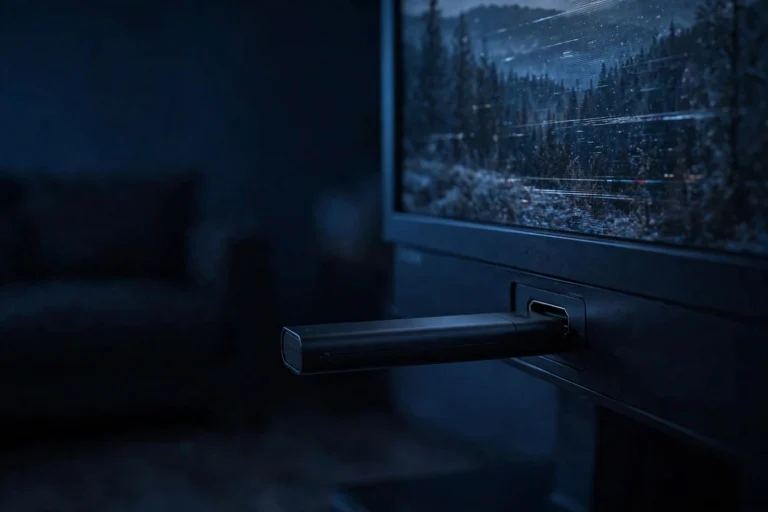
The fix is external storage via USB OTG. You need an OTG cable (which splits the stick’s single micro-USB or USB-C power port into power plus a USB-A socket), a USB flash drive or portable hard drive, and ideally a powered USB hub if you are using a spinning hard drive rather than a flash stick. Once connected, Fire OS can format the drive as external storage that apps can write to. Point your IPTV app’s recording folder at it and you have, in effect, a DIY PVR.
There are honest caveats. OTG setups add cables behind the TV, which offends the minimalist. Some Firestick models are pickier than others about which drives they recognise, so buy from somewhere with easy returns. And read/write speeds matter: a slow bargain flash drive can stutter when writing a high-bitrate 4K stream in real time. A reputable USB 3.0 flash drive of 64 GB or more is the sweet spot for most people, holding a comfortable buffer of films and episodes without breaking the bank. If you are choosing hardware specifically for recording, our guide to the best device for IPTV in the UK explains which boxes handle it best.
IPTV Smarters Pro: What Recording It Actually Offers
IPTV Smarters Pro is many UK viewers’ first IPTV app, and it causes the most confusion on this topic. The honest position, confirmed across years of user reports and reviews, is that Smarters Pro has no proper DVR system. There is no scheduled recording, no series link, no recording planner.
Some versions and some forks of the app do include a basic instant-record function: a record icon that captures the currently playing stream to a folder you choose. It works, in the narrow sense that a file appears, but it is manual only, it records only what is on screen right now, and reliability on low-storage devices like the Firestick is mixed. If recording matters to you, Smarters Pro is the wrong app for the job, and no update is likely to change that; its developers have never positioned recording as a headline feature.
This is worth knowing before you invest time customising Smarters. If you only ever watch live and never record, Smarters is a fine, friendly app. If you are the kind of viewer who timeshifts everything, install TiviMate instead and save yourself the frustration of hunting for a record button that barely exists.
Catch-Up TV: The Lazy Alternative to Recording
Many IPTV providers include catch-up TV, which quietly makes recording unnecessary for a large share of viewing. Catch-up is server-side: the provider stores recent programmes on their own servers, typically covering the last few days, and you simply scroll back in the guide and press play. No storage, no timers, no USB drives, no occupied connections while you are not even watching.
For soaps, news, and series you watch within a few days of broadcast, catch-up is strictly better than recording. It costs you nothing in hardware and cannot fail because your stick went to sleep. Its limits are that the window is short (a few days, not a few months), not every channel carries it, and you cannot keep a programme permanently or skip through it with quite the same freedom as a local file.
The practical approach is to use both. Let catch-up handle day-to-day timeshifting, and reserve local recording for the things you want to keep: the cup final, the series you rewatch every year, the film you want available offline. Check whether your provider offers catch-up on the channels you care about before buying any recording hardware; you may find you need far less than you assumed. XtreamHD’s channel lineup and the free trial are the quickest way to test this on your own setup.
How Much Storage Does a Recording Actually Take?
Storage needs depend on the stream’s quality, and IPTV streams vary more than broadcast TV did. As a rough guide, an hour of standard-definition recording takes around 1 to 2 GB, an hour of HD takes roughly 3 to 5 GB, and an hour of 4K can take 7 GB or more. A 64 GB USB drive therefore holds roughly a dozen HD films, which is plenty for a rolling watch-and-delete habit but not a permanent archive.
Two things inflate these numbers in practice. First, some providers’ HD streams run at higher bitrates than others, so your mileage will vary. Second, failed or partial recordings still occupy space, and an interrupted recording of a three-hour match still costs you the gigabytes. Build a habit of deleting watched recordings promptly, and check the recording folder monthly for orphans. If you are the household archivist who keeps everything, skip flash drives entirely and attach a proper external hard drive; the cost per gigabyte is far lower.
DVR Options Compared
| Option | What it does | Cost | Best for |
|---|---|---|---|
| TiviMate Premium recording | Instant, scheduled and series recording to local or USB storage | App licence only, around $10 per year | Viewers who want a proper PVR experience |
| Provider catch-up TV | Watch recent programmes from the provider’s servers, no storage needed | Included with most subscriptions | Day-to-day timeshifting of soaps, news and series |
| Smarters Pro instant record | Manual recording of the current stream only | Free | Occasional clips, not serious recording |
| Screen capture (phone or PC) | Records whatever is on screen as a video file | Free | Short clips to share, poor quality for full programmes |
| Old Sky or Virgin box | Traditional built-in DVR | Existing hardware | Keeping as a backup recorder during the transition |
The Legal Bit: What You Should Know
Recording for personal timeshifting sits in a grey area that is worth understanding honestly. In the UK, the law around recording broadcasts for later personal viewing was written for the era of VCRs and broadcast TV. IPTV services operate under different licensing arrangements, and your provider’s terms of service are the document that actually governs what you may do with their streams.
The pragmatic guidance is this: recording programmes to watch yourself, in your own home, at a more convenient time, is the classic timeshifting use case and is not what enforcement or provider abuse systems care about. What providers do care about is redistribution: uploading recordings, sharing them, or restreaming them. Keep recordings private and personal and you are using the feature exactly as intended. For the broader legal picture, our IPTV FAQ covers the common questions UK viewers ask.
On the technical side, a digital video recorder is simply a device or app that saves video in digital form to local storage, a definition that covers everything from a Sky box to a Firestick with a USB drive. Wikipedia’s entry on the digital video recorder gives the full background if you are curious about how the technology evolved.
Frequently Asked Questions
Can I record IPTV on a Firestick?
Yes, but you need the right app and external storage. Use TiviMate Premium with a USB drive connected via an OTG cable, and point the app’s recording folder at the drive. The Firestick’s internal storage is too small for serious recording.
Does IPTV Smarters Pro have a DVR?
No proper DVR. Some versions offer a basic instant-record button for the current stream, but there is no scheduled recording and no series link. For real DVR features, use TiviMate Premium.
Will recording use one of my connections?
Usually yes. A recording tunes a live channel just like watching does, so it occupies one of your plan’s simultaneous streams. Recording two channels at once needs two free connections.
Can I record one channel while watching another?
Only if you have a spare connection and your app supports background recording. On a one-connection plan, starting a recording of a different channel will interrupt what you are watching.
Is catch-up TV the same as recording?
Not technically, but it serves the same purpose for recent programmes. Catch-up is stored on the provider’s servers and needs no storage or timers from you. Recording gives you a permanent local file you control.
Why did my scheduled recording fail?
The usual causes are the device going into deep sleep, the app being closed, the stream buffering at record time, or the programme overrunning its scheduled slot. Leave the device on, pad live sport by 30 minutes, and check the recording folder location is still valid.
The Bottom Line on Recording IPTV
You can absolutely record IPTV, and done right it is reliable. The formula is simple: TiviMate Premium for the DVR features, a USB drive for storage, catch-up TV for everything you watch within a few days, and realistic expectations about the difference from a Sky box. Set that up once and recording becomes invisible, which is the whole point. If you are still choosing a provider, take the free trial and test recording on your own device before you spend a penny on hardware. Our IPTV setup guide will get the app installed in minutes.